Filter the task pane
The Files tab toolbar gives you four controls to narrow and order the file list: Search, Filter, Sort, and the List/Tree toggle. All are on a single row.
Prerequisites
- You are signed in and the Files tab shows your repository.
Search by name
Type in the search box (leftmost, stretches to fill available space). The autocomplete dropdown shows up to five matching files; click one to jump to it in the list. Clear the box to return to the full list.
Filter by type, placeholder status, or lock state
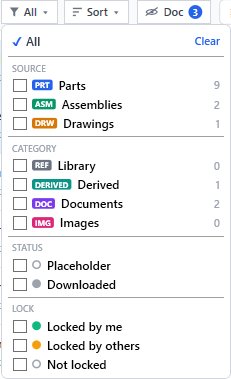
Click All ▼ (or Filter (N) ▼ when filters are active) to open the filter panel.
┌──────────────────────────────────┐
│ ✓ All                     Clear  │
│ ─────────────────────────────── │
│ SOURCE                           │
│ □ PRT  Parts                     │
│ □ ASM  Assemblies                │
│ □ DRW  Drawings                  │
│ ─────────────────────────────── │
│ CATEGORY                         │
│ □ REF      Library               │
│ □ DERIVED  Derived               │
│ □ DOC      Documents             │
│ □ IMG      Images                │
│ ─────────────────────────────── │
│ STATUS                           │
│ □ ◌   Placeholder                │
│ □ ●   Downloaded                 │
│ ─────────────────────────────── │
│ LOCK                             │
│ □ ●   Locked by me               │
│ □ ●   Locked by others           │
│ □ ◌   Not locked                 │
└──────────────────────────────────┘
How the logic works: - SOURCE (Parts/Assemblies/Drawings) and CATEGORY (Library/Derived/Documents/Images) together pick which buckets to show. Checked items are OR — Parts + Derived shows both. - Checking any SOURCE/CATEGORY box overrides the working-set default — e.g. ticking Derived reveals derived files even when the Doc toggle is off. With none checked, the Doc toggle governs (working set unless you've turned outputs on). - The STATUS and LOCK groups combine with the category selection as AND — checking Assemblies + Locked by me shows only assemblies that are locked by you. - An unchecked group imposes no constraint. All / Clear resets every filter at once.
The button label updates: All ▼ when nothing is filtered, Filter (N) ▼ showing the count of active checkboxes when any are on. The panel stays open for multi-select and closes when you click outside or press Esc.
Sort the list
Click Sort ▼ to pick a sort order (List view only; Tree view stays hierarchical):
| Option | Order |
|---|---|
| Name (default) | Alphabetical, case-insensitive |
| Lock Status | Locked by me first, then locked by others, then not locked; alphabetical within each group |
| File Size | Largest first (click again to flip direction) |
Switch between list and tree
The ≣ (list) and ⊟ (tree) icon buttons at the right of the toolbar toggle the view.
- List (≣) — flat, sorted list.
- Tree (⊟) — folder/assembly hierarchy. Below the source hierarchy, non-source files are collected into separate Library, Derived, and Documents groups (documents and images share the Documents group). The Library group header carries a + to Add Library Part. Sort and type filter still apply; lock and status filters apply to individual nodes.
Show outputs and documents
By default the list shows only the working set — source files and library reference parts. Derived exports, documents, and images are hidden behind the Doc toggle in the toolbar (after Sort):
- Doc (eye icon + count badge) — click to reveal the hidden derived/document/image rows. The toggle appears only when there are such files. While they are hidden the eye shows a slash and the badge counts them; click again to collapse them (the toggle turns blue while showing).
- Add Library Part — in the ⋯ menu at the right of the toolbar; copies a standard part from a library source into the repo's read-only Library/ folder. See Add a standard part to the library.
Reading the row badges
Source files show only their lock state. Non-source files carry a small role badge instead: REF for a library reference part, or the file extension (e.g. STEP, PDF, PNG) for derived/document/image files. Their status line reads "Reference · read-only", "Derived export", "Document", or "Image" rather than a lock state — these files are not locked.
| Badge / state | Meaning |
|---|---|
| Checked out by me (amber) | You hold the lock. |
| Checked out by others (green) | A teammate holds the lock. |
| Available (grey) | No one has it checked out; read-only. |
| REF | Library reference part — read-only, never checked out. |
| STEP / PDF / PNG … | A derived export, document, or image (extension shown). |
| M | Modified — saved changes not yet checked in. |
| L1 / L2 … | Unpublished local versions (Save Local Version). |
·placeholder· |
Bytes not on this PC (make available). |
Bulk actions (⋯ kebab)
The ⋯ button at the far right of the toolbar holds infrequent bulk actions. Currently: # Assign Part Nos to All — assigns part numbers from the registry to every file that doesn't have one yet (admin action; see Manage part numbers).
Expected result
The file list shows only what matches your search and active filters, in the sort order and view you chose.
Troubleshooting
| Symptom | Cause | Fix |
|---|---|---|
| A file you expect is missing | A filter is active. | Check the button label — if it says Filter (N) ▼, open it and click Clear. |
| Filter panel closes before I finish | Clicking outside the panel closes it. | Click inside the panel to keep it open; use Esc to close deliberately. |
| Sort doesn't change the tree view | Sort only applies to the flat list. | Switch to List view (≣) to use sort. |
~$-prefixed files appear |
Should never happen — SolidWorks temp files are filtered out by design. | Report if you see one. |
Known limitations
- Tree view groups (assemblies, "Unassigned", "Drawings") are display groupings; some per-file actions are hidden on group rows.
- Sort order resets to Name on reconnect (filter/sort state is session-only, not persisted).