Message your team
GitM includes real-time 1:1 direct messaging per repository. Messages are separate from git history and engineering artifacts — they're a people layer for quick coordination without leaving SolidWorks.
Open messaging
Click the blue chat icon immediately to the left of the notification bell in the tab strip.
- A red dot on the icon means you have unread messages.
- The messaging panel slides open over the task pane.
People list
The left side of the panel shows your team. Each row has:
- Avatar and display name (or GitHub login if no profile is set).
- A preview of the last message in that conversation.
- A red dot and bold name when there are unread messages.
Click a person's row to open the conversation.
Send a message
Type in the composer at the bottom and press Enter to send. Press Shift + Enter to insert a line break without sending.
The thread scrolls to the latest message automatically.
React to a message
Hover any message and click the 😊 button that appears. A popover shows six emoji:
👍 ❤️ 😂 😮 😢 🎉
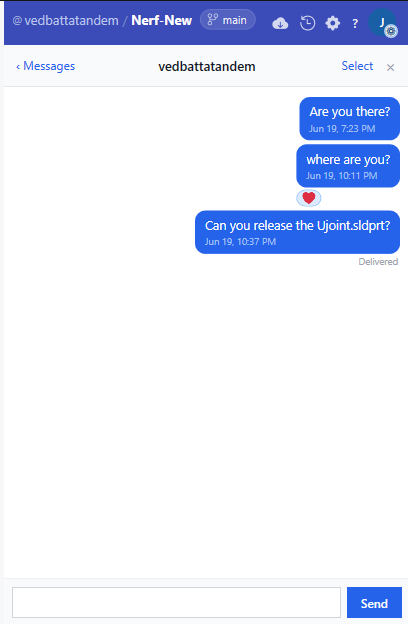
Click one to add your reaction. It appears as a chip under the message. Click your own reaction chip again to remove it.
Unsend a message
You can delete your own messages for everyone in the thread:
- Hover your message.
- Click the 🗑 (delete) button.
The message disappears immediately for both sides. You cannot unsend messages sent by someone else.
Delete multiple messages
- Click Select in the thread header.
- Checkboxes appear on your messages (you can only select your own).
- Tick the messages you want to remove.
- Click Delete (n) to confirm.
Read receipts
Under the most recent message you sent that the other person has seen, you'll see:
- Delivered — the message reached the server.
- Read — the other person opened the conversation past that message.
Read receipts are always on in v1.
Message bubbles
- Blue bubbles — your messages, on the right.
- Grey bubbles — their messages, on the left.
Close messaging
Click the × or click outside the panel. The panel hides but stays connected in the background — unread counts update even while it's closed.
Known limitations
- Messaging is 1:1 only in v1. Group channels are planned but not yet shipped.
- Messages require an internet connection. The messaging icon is hidden when the add-in is offline — no error is shown.
- Message history is stored per repository — switching repositories shows that repo's threads.