Set up your profile
Your profile is an optional display layer on top of your GitHub identity. Your GitHub login and avatar are the defaults; a profile lets you add your real name, a contact email, and a custom photo so teammates can put a face to a login.
Profiles are global — set it once and it shows in every repository you access.
Open the Profile editor
Two entry points:
- Click your avatar in the top-left corner of the GitMCloud dashboard.
- Settings (⚙️) → Identity → Edit Profile
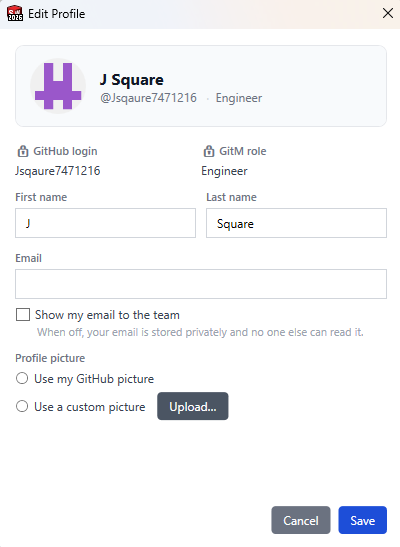
What you can edit
| Field | Notes |
|---|---|
| First name / Last name | Shows as your display name on the Team view and in messages. |
| Optional. Hidden from teammates unless you tick Show my email to the team. | |
| Show my email to the team | When checked, your email appears on other people's Team view. Off by default. |
| Avatar — Use my GitHub picture | Default. No upload required. |
| Avatar — Use a custom picture | Click Upload to choose a photo. Resized to ~256 px in the browser. |
The preview updates live as you type or upload.
Read-only fields (🔒 padlock):
- GitHub login — your canonical identity, not editable here.
- Role — set by your CAD admin; managed on GitHub.
Click Save to write changes. Teammates see the update on their Team view within a few seconds.
Where your profile shows
- Team view — display name, optional email, and avatar replace the raw GitHub login.
- Messages drawer — your name and avatar appear in the people list and DM threads.
Privacy notes
- Email is never stored in a public location unless you tick "Show my email to the team".
- Custom avatars are stored in the GitM backend, not in your GitHub repository.
Known limitations
- Avatar upload is resized client-side to roughly 256 × 256 px to keep storage small.
- Profile data is separate from GitHub — changes here do not affect your GitHub profile.