Install GitM on a workstation
Run the GitM installer to put the add-in on a machine and register it with SolidWorks.
Prerequisites
- Prerequisites reviewed: .NET 4.8, Git, Git LFS all present.
- Administrator rights on the machine.
- SolidWorks closed (the installer registers into SolidWorks; closing it avoids file locks).
Get the installer
Download the latest installer any time from the stable link — it always serves the current release, so the URL never changes when a new version ships:
https://gitmcloud.gojain.com/download
You can also reach it from inside GitMCloud: the ? (Help) menu → Download desktop add-in, or the New to GitM? Get the desktop add-in card on the sign-in screen. No sign-in is required to download — the add-in is useless without project access, which sign-in already gates.
- Filename:
GitM-Setup-<version>.exe(e.g.GitM-Setup-2.0.0.exe; the version bumps with releases). The download link always gives you the newest. - Built with Inno Setup. It is currently unsigned during development, so Windows SmartScreen may warn "Unknown publisher."
Steps
- Double-click the downloaded
GitM-Setup-<version>.exe. - If SmartScreen warns, choose More info → Run anyway (expected while unsigned).
- Approve the User Account Control prompt (admin is required).
- The installer checks prerequisites. If anything is missing it stops here — see Review prerequisites.
- Click through Welcome → install. Default install location is
C:\Program Files\GitM\. - The installer registers the add-in (this runs 64-bit RegAsm in the background) and finishes.
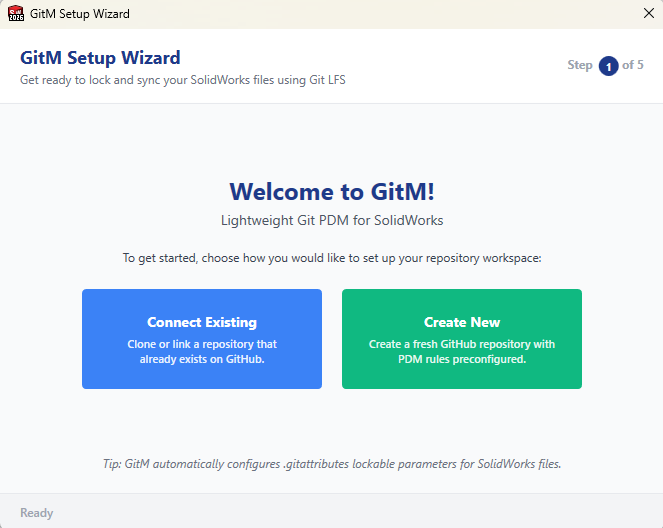
What the installer puts on the machine
Files → C:\Program Files\GitM\:
- GitM.SolidWorks.dll, GitM.Core.dll, GitM.UI.dll (the add-in)
- Third-party runtime DLLs (CommunityToolkit.Mvvm, Newtonsoft.Json, Serilog, etc.)
- SolidWorks interop assemblies
Registry — what gets registered with SolidWorks:
- COM class registration for CLSID {F4073A99-5C32-4113-9EAD-011F4A6BF3A6} (InprocServer32 →
mscoree.dll, with the managed assembly details), under both HKCU and HKLM.
- …\SOFTWARE\SolidWorks\Addins\{F4073A99-…} — enables the add-in, with Title = "GitM"
and a description.
- …\SOFTWARE\SolidWorks\AddInsStartup\{F4073A99-…} — loads the add-in on SolidWorks
startup.
The GUID is fixed and permanent for the product — it must never change between versions.
Expected result
- GitM is installed to
C:\Program Files\GitM\. - The add-in is registered and set to load on SolidWorks startup.
- On post-install, the installer verifies the COM CLSID key exists; if not, it warns you to re-run as Administrator.
Next: Configure GitM on first launch.
Troubleshooting
| Symptom | Cause | Fix |
|---|---|---|
| Installer aborts at the start | Missing prerequisite. | Review prerequisites. |
| "COM registration may be incomplete" message at the end | RegAsm didn't write the CLSID key (often a privilege issue). | Re-run the installer as Administrator. |
| SmartScreen blocks the file | Installer is unsigned. | More info → Run anyway. |
| Install seems to work but no task pane in SolidWorks | Registration or load issue. | Verify the installation. |
Known limitations
- Unsigned during development. Expect SmartScreen warnings until the installer is Authenticode-signed.
- The installer registers against the SolidWorks registry paths but does not enumerate and confirm each installed SolidWorks version individually; if you run multiple SolidWorks versions and one doesn't show GitM, see Verify and troubleshoot deployment.