Task pane tour
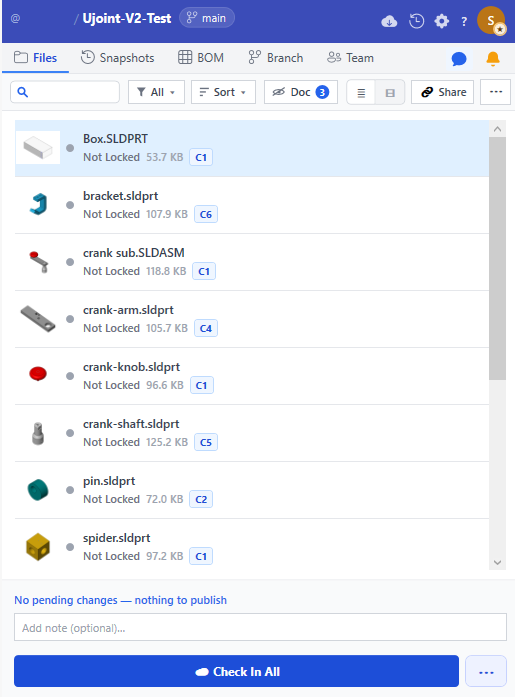
A tour of the GitM PDM task pane. The pane has a top bar and five tabs: Files, Snapshots, BOM, Branch, Team.
Top bar
- Project switcher — the
@owner / projectname is a clickable pill, not just a label, with a count badge when you have 2+ connected projects. Click it for a menu: your Projects (the active one has a dot), + Connect another project…, Company admin portal ↗ (opens the Tandem portal in your browser — a new tab, you stay signed in here), and a footer Signed in as @user · Switch account…. One click switches projects — no re-sign-in. The branch pill sits beside it. See Switch or connect projects. - ⊘ Offline pill (amber) — appears only when GitM has no connection. Editing and local versions still work; cloud actions are paused. Hover to see how many local check-ins are waiting. See Work offline.
- Get Latest (
 ) — pull the latest files from GitHub. A blue count badge
on the icon means a teammate added or changed that many content files (CAD, library parts,
PDFs, STEP/IGES, docs) you haven't pulled yet — click to download them. Hover the icon for a
per-type breakdown. The count ignores GitM's internal data (thumbnails, BOM, registry). The
badge is populated by Refresh and the background Check for Updates timer; it clears after Get
Latest completes.
) — pull the latest files from GitHub. A blue count badge
on the icon means a teammate added or changed that many content files (CAD, library parts,
PDFs, STEP/IGES, docs) you haven't pulled yet — click to download them. Hover the icon for a
per-type breakdown. The count ignores GitM's internal data (thumbnails, BOM, registry). The
badge is populated by Refresh and the background Check for Updates timer; it clears after Get
Latest completes.  Refresh — run a read-only check for new versions on GitHub (no file download) plus a
local status refresh. Tooltip: "Refresh — check GitHub for new versions (no download)."
The background Check for Updates timer runs the same operation automatically.
Refresh — run a read-only check for new versions on GitHub (no file download) plus a
local status refresh. Tooltip: "Refresh — check GitHub for new versions (no download)."
The background Check for Updates timer runs the same operation automatically.- Settings (
 ) — open the Settings dialog.
 - ? (help) — click to open a small menu with two items: Help (opens the documentation
site at
gitmdocs.gojain.com, or the bundled offline copy if offline) and Version (shows the current release, e.g.V1.5.0). Hovering still shows the icon guide tooltip. - Notification bell — surfaces session notices (e.g. a held lock) without shifting layout.
Files tab
The main working surface.
Toolbar (single row, left to right):
- Search (flexes to fill) — jump-to autocomplete by filename.
- All ▼ / Filter (N) ▼ — grouped filter dropdown: TYPE (Parts/Assemblies/Drawings),
STATUS (Placeholder/Downloaded), LOCK (Locked by me/others/Not locked). OR within a
group, AND across groups. Label shows active filter count.
- Sort ▼ — Name (default, alphabetical) or Lock Status. List view only.
- Doc ( eye icon + count badge) — shows or hides the derived/document/image rows. Appears only
when such files exist; the eye shows a slash and the badge counts them while they're hidden, and
the button turns blue while they're shown.
- ≣ / ⊟ — icon-only List / Tree toggle.
-
eye icon + count badge) — shows or hides the derived/document/image rows. Appears only
when such files exist; the eye shows a slash and the badge counts them while they're hidden, and
the button turns blue while they're shown.
- ≣ / ⊟ — icon-only List / Tree toggle.
-  Share — start a supplier share. Manager/Admin only; opens share-selection mode for
picking multiple files. See Share files with a supplier.
- ⋯ — kebab for bulk actions:
Share — start a supplier share. Manager/Admin only; opens share-selection mode for
picking multiple files. See Share files with a supplier.
- ⋯ — kebab for bulk actions:  Add Library Part (copy a standard part from a library
source into
Add Library Part (copy a standard part from a library
source into Library/) and  Assign Part Nos to All.
See Filter the task pane for full details.
File rows show name, lock state, and badges:
- Checked out by me (amber) / Checked out by others (green) / Available (grey).
- M — modified (saved, not checked in).
- Cx · Lx — version coordinate: which cloud version (C3) the file is on, plus any
unpublished local versions on top (C3 · L2). Just Cx if clean; just Lx for a
never-pushed local-only file.
- ·placeholder· — bytes not on this PC.
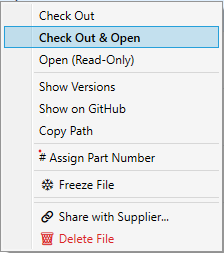
- Right-click menu:  Check Out, Check Out & Open, Open (Read-Only),
 Save Local Version, Discard Changes,
  Show Versions (opens the per-file timeline overlay with Cx/Lx and
per-version Restore),
Show Versions (opens the per-file timeline overlay with Cx/Lx and
per-version Restore),  Show on GitHub,
  Copy Path, Make Available on this PC,
Generate BOM (assemblies), Assign/Re-stamp Part Number,
Copy Path, Make Available on this PC,
Generate BOM (assemblies), Assign/Re-stamp Part Number,
 Release… (stamps a revision; releaser/admin only),
  Open ECO for this file…,
 Freeze/Unfreeze File (Maintain/Admin), Share with Supplier... (Manager/Admin; disabled if the file is
locked by you), Force Unlock (admin),
Freeze/Unfreeze File (Maintain/Admin), Share with Supplier... (Manager/Admin; disabled if the file is
locked by you), Force Unlock (admin),  Delete File (admin, published files).
Bottom action bar — adaptive primary button + ⋯ overflow:
| Button | When shown | What it does |
|---|---|---|
 Check In All (N) Check In All (N) |
Primary, when you have pending changes | Publishes all pending files to GitHub and undoes their check-outs. Does not create a snapshot. |
| Publish Snapshot |
Primary when repo is clean; otherwise in ⋯ | Snapshots the whole repository as a numbered milestone. See Publish a snapshot. |
 Undo all check-outs Undo all check-outs |
⋯ overflow | Discards uncommitted edits and undoes every check-out you hold. Use when handing work back. |
| Discard all changes |
⋯ overflow | Reverts uncommitted tracked edits to HEAD. Keeps your check-outs. Untracked files are left in place. |
Restore to Snapshot is a working-tree checkout — it changes files on disk but does not commit or push. Affected files appear as modified / Checked out by me; Check In to keep the restore, or Discard to undo it.
- Transient status messages appear as a floating toast, not inline, to avoid layout shifts.
Snapshots tab
Published snapshots (whole-repo milestones), newest first, each with author, time, description, and a short commit id. Per snapshot: Restore this Snapshot (resets the whole project to that snapshot) and GitHub (opens the commit on github.com). An amber banner appears when you have unpublished local versions. Single-file history lives on the file's right-click Show Versions overlay, not here. See Open an earlier version.
BOM tab
Generate, view, and sort the Bill of Materials for an assembly. The BOM is stored under
.gitm/bom/ and displayed in the browser via GitMCloud after check-in.
Toolbar (single row, left to right): - Search (flex) — filter BOM lines by name, part number, description, or material. - Assembly ▼ — fixed-width picker (extension stripped for display; full name on hover). Visible only when at least one BOM exists. - Sort ▼ — Line # (default), Part No, Component, Qty, or Mass. List view only. - ≣ / ⊟ — List / Tree toggle. - ⟳ — re-extract BOM from the open assembly (one-click, stays on the toolbar). - ⋯ — kebab: Export to CSV.
See Generate a BOM.
The BOM browser viewer is GitMCloud — see GitMCloud docs.
Branch tab
List local/remote branches, switch (with the open-document safety check), create branches, and open a pull request on GitHub. See Work with branches.
Team tab
Team-oriented view: members, locks, supplier share links, and recent activity for the repository. Useful for seeing who has what checked out.
- Team Members / Active Locks / Recent Activity — collapsible sections.
- Supplier Share Links — every share created for this repo, with note, creator, expiry
(and a
 badge when within 3 days), file count, and 🔒 if password-protected. Each active
share has Copy and Revoke buttons. See
Share files with a supplier.
badge when within 3 days), file count, and 🔒 if password-protected. Each active
share has Copy and Revoke buttons. See
Share files with a supplier.
Settings dialog ()
Tabs: Repository, Account (connected GitHub account + Commit Identity, Switch Account, and a Company admin portal ↗ link), Preferences (Lock on open, Check for Updates, description template, file download options, and Storage as a subsection), Team & Sharing (admin-gated Part Numbers policy), Diagnostics. See Settings reference.